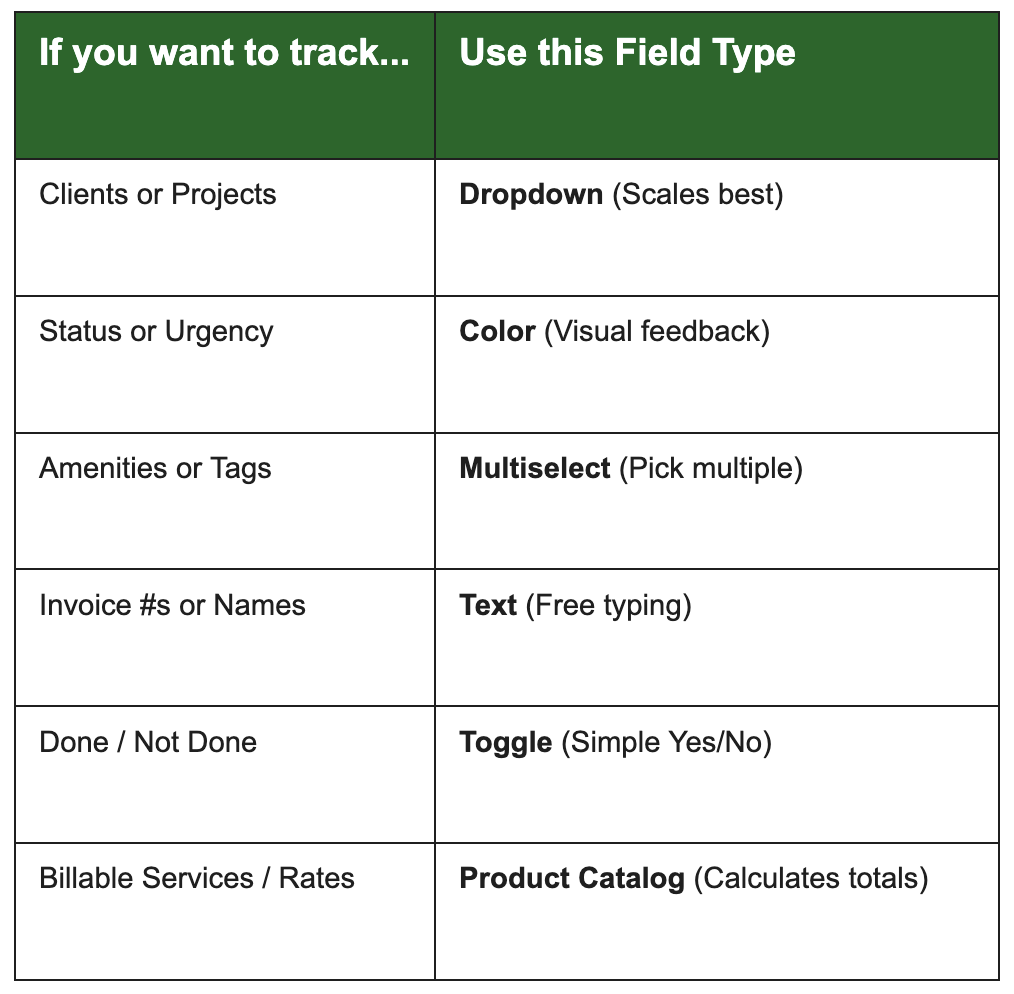
Guide to Custom Field Times
Time Reports Pro allows you to add custom data to your Google Calendar events using "Fields." Choosing the right Field Type is critical for keeping your data organized and your reports useful.
Here is a breakdown of the available field types and how to use them effectively.
1. Dropdown Field
Best for: Categorizing data where there is a fixed list of options.
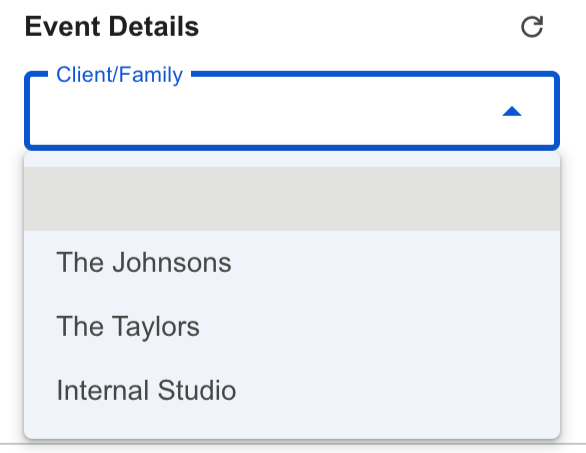
A Dropdown field presents a list of pre-defined options (e.g., Client Names, Project Phases). You can select one option per event.
Why use it: It ensures data consistency. Users cannot accidentally type "Acme Corp" and "Acme Inc," which would split your reporting data.
Scalability: You can add an unlimited number of options to a dropdown list, making it the best choice for lists that grow over time (like your Client list).
Example Use Case: Client Name, Project Stage, Department.
2. Color Field
Best for: High-level status tracking that needs to be visible at a glance.
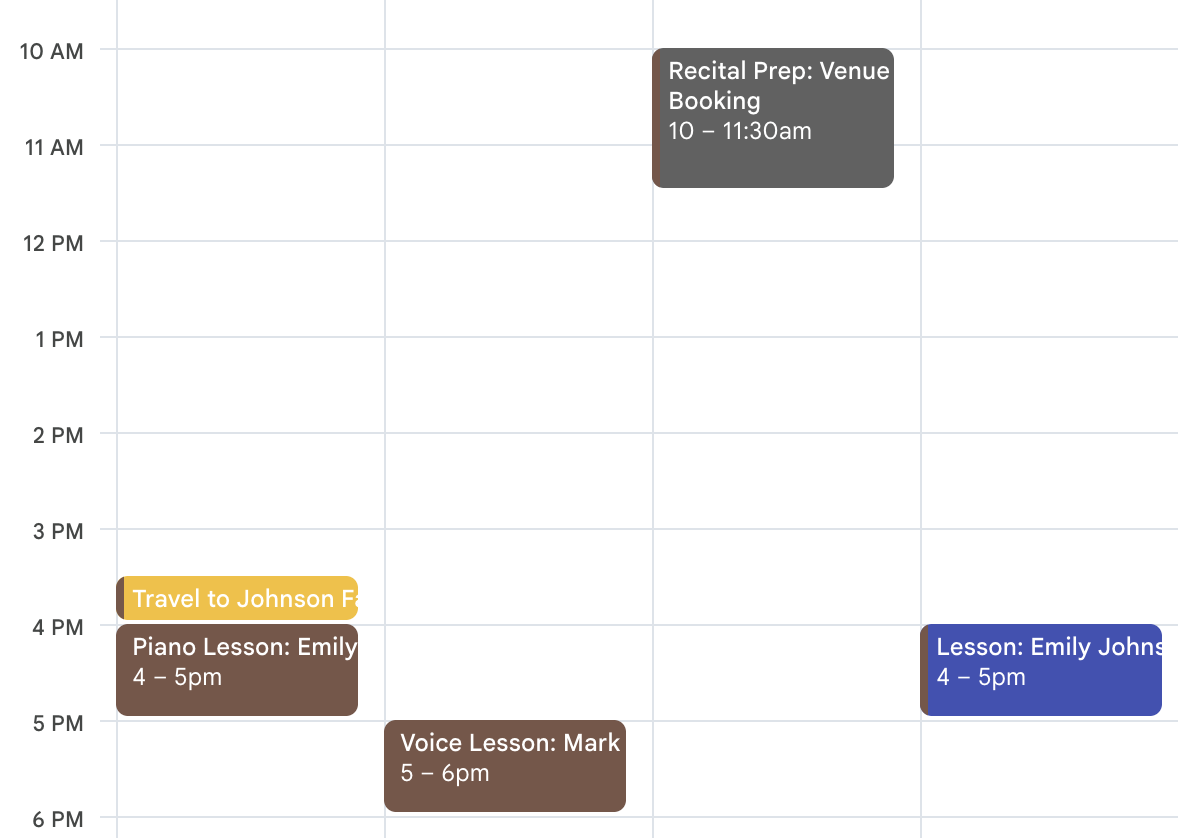
The Color field functions like a Dropdown (you pick one option from a list), but with a powerful visual twist: selecting an option automatically changes the color of the event on your Google Calendar grid.
Visual Management: This allows you to "see" your schedule's status without opening individual events.
Limit: Google Calendar supports a maximum of 11 colors. Therefore, this field type is best used for small, fixed lists.
Limitations: You can only have one Color Field per calendar. You are unable to add new or custom colors as these are set by Google Calendar API.
Example Use Case: Event Status (Inquiry/Confirmed), Appointment Type (Urgent/Routine), Staffing (Assigned/Unassigned).
3. Multi-select Field
Best for: Tagging events with multiple attributes.
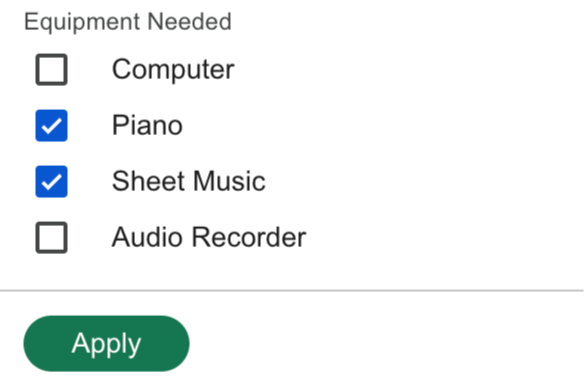
Similar to a Dropdown, but allows you to select multiple options for a single event.
Flexible Tagging: Great for adding non-exclusive attributes to an event.
Reporting: When you run a report, events with multiple tags will often be counted for each tag selected, depending on your filter settings.
Example Use Case: Amenities Required (AV, Catering, Parking), Team Members Involved (John, Sarah, Mike), Content Tags (Educational, Promo, Viral).
4. Text Field
Best for: Unique, open-ended information.
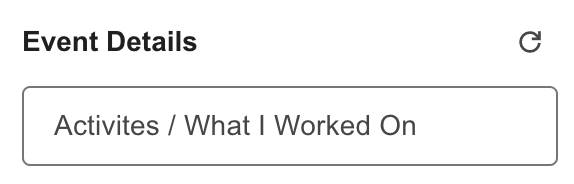
A simple text box that allows you to type anything.
Freedom: Useful for capturing unique identifiers or notes that don't fit into a pre-defined list.
Reporting Caution: Because users can type anything, it is harder to group data in reports. Use this for specific details rather than categories.
Example Use Case: Invoice Number, Guest Name, URL / Link, Specific Meeting Notes.
5. Toggle Field
Best for: Simple "Yes / No" or "Done / Not Done" flags.
A simple switch that can be turned On or Off.
Speed: The fastest way to mark an event status.
Filtering: Extremely powerful for filtering reports (e.g., "Show me all events where 'Billed' is FALSE").
Example Use Case: Invoiced?, Completed?, Overtime Apply?, Catering Confirmed?